How to Prepare CAD Files for 3D Printing Bureaus
High-quality 3D prints depend on properly exported CAD models. Using STEP files, exporting individual shells, and budgeting correct clearances prevents geometric errors and fits issues.
Smooth Data Transfer from Screen to Print
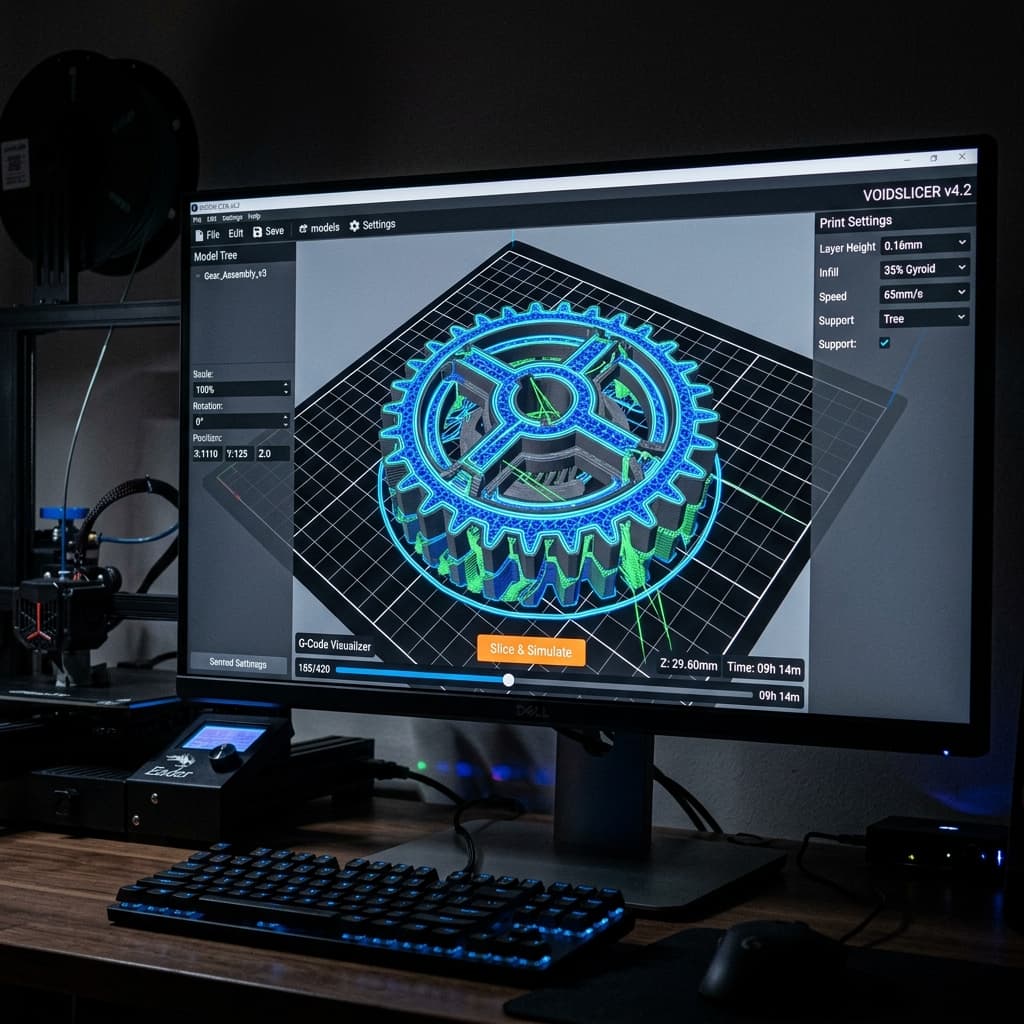
To get an accurate, fast quote from a 3D printing bureau like NovaLab 3D, exporting your CAD data correctly is the most important step. A poorly exported file can result in faceted curves, incorrect scale, missing holes, or components that fail to slice.
This guide outlines how to configure your CAD exporter to ensure your designs transition smoothly from your screen to our Pickering facility.
Export files in STEP format whenever possible. If you must use STL, set export resolutions carefully to avoid visible facets on curved surfaces.
1. The File Format: STEP vs. STL
Traditionally, STL was the industry standard for 3D printing. However, STL files represent surfaces as collections of triangles, which discards the original mathematical curves of your CAD model.
- STEP (Recommended): A STEP file preserves the true mathematical geometry (B-Rep) of your design. Our slicers can read STEP files directly and generate incredibly smooth toolpaths, avoiding faceted perimeters on holes and cylinders.
- STL (Fallback): If you must export to STL, ensure your exporter resolution is set to 'Fine' or 'Custom' with a chord deviation of around 0.01mm.
2. Sizing and Units
STL files are unitless. The file simply contains numbers like "50", which the slicer must interpret.
- Standard Unit: The vast majority of 3D printing slicers operate in millimetres (mm). Ensure your CAD software exports using millimetres as the baseline unit. If you export in inches, your 2-inch bracket will load into our slicer as a tiny 2mm speck.
- Explicit Scale: If your part was designed in inches or meters, let us know in the quote description so we can apply the correct scaling factor.
3. Handle Assemblies Separately
Do not export a complex multi-part assembly as a single STL file. The slicer will merge the overlapping geometries into a single solid mass, making it impossible to print them as separate components or assemble them later.
- Export each individual component as a separate file.
- If parts fit together, include an assembly drawing or name files logically (e.g.
housingbase.stepandhousinglid.step).
Secure CAD Upload
At NovaLab 3D, we accept STEP, STL, and major native CAD files securely. We treat all client data as strictly confidential. Upload your files today for a professional engineering review.
Frequently Asked Questions
Keagan Walker
Founder & Lead Designer
NovaLab 3D is a boutique engineering and additive manufacturing studio based in Pickering, North Yorkshire. We provide B2B clients and product developers with direct access to lead engineering consulting, fast 48-hour turnarounds, and custom FDM production runs.